
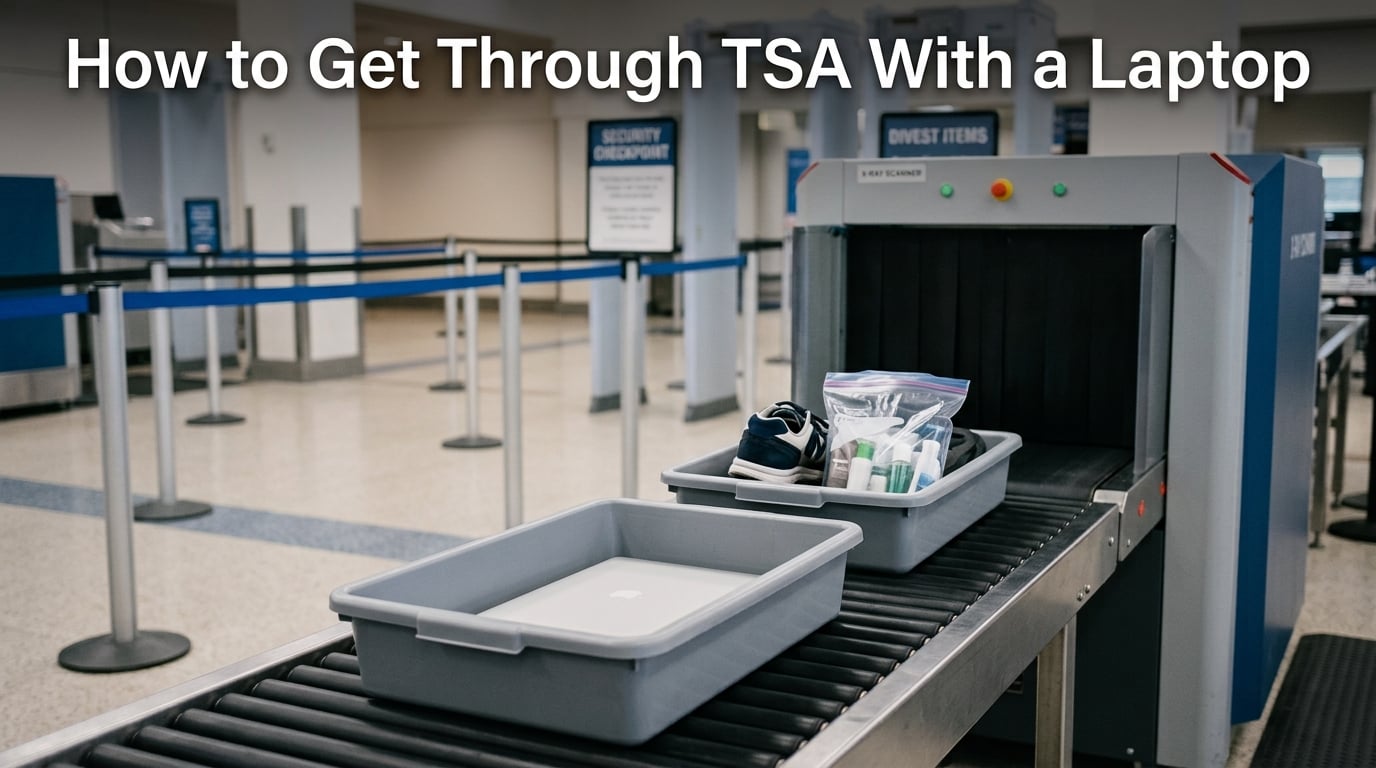
Getting through TSA with a laptop is one of the most common slowdowns at airport security, and the rules are not as obvious as they look on the signs above the belt. If you have ever stood in line watching people fumble with bags while you held up the lane, this guide is for you. Here is everything you need to know about how to get through TSA with a laptop in (September 2026), from the official rules to PreCheck, batteries, and what happens if your device gets flagged.
Our team has pulled the official TSA guidance, FAA battery limits, and real traveler experiences from forums like r/tsa and r/TravelHacks to give you one clear, up-to-date walkthrough. We update this guide whenever the rules shift, so the information below reflects the current (September 2026) procedures at U.S. checkpoints.
By the end, you will know exactly when to remove your laptop, when you can leave it in the bag, how to prep before you fly, and how to handle edge cases like a dead battery or a flagged device.
Table of Contents
Official TSA Laptop Rules in (September 2026)
The short answer: yes, you can bring a laptop through TSA in both carry-on and checked bags, but at standard screening you must remove the laptop from your bag and place it in a separate bin for X-ray screening. TSA’s published guidance states that laptops should be placed in a bin with nothing on top or underneath, then sent through the X-ray machine alongside your carry-on.
The reason is physics, not paranoia. A laptop is dense enough to block the X-ray image and hide items packed underneath it. Removing it lets the screener see the inside of your bag clearly without obstruction.
Tablets, e-readers, and phones generally do not need to come out at standard lanes, but anything larger than a smartphone often does. When in doubt, ask the officer at the front of the line, because lane-specific rules vary.
TSA PreCheck members get an exemption: they can leave laptops, 3-1-1 liquids, shoes, belts, and light jackets in place. We cover the PreCheck process in detail below.
How to Get Through TSA With a Laptop: Step-by-Step
Here is the exact sequence our team follows every time we fly with a laptop. Following this order keeps the line moving and stops you from being the person everyone glares at.
Step 1: Have your ID and boarding pass ready. Before you touch the bins, hand the TSA officer your ID and boarding pass. This keeps your hands free for the next steps and avoids fumbling with a laptop in one hand.
Step 2: Grab two bins before you start unpacking. One bin holds your laptop (and larger electronics if required), and the other holds your shoes, belt, jacket, and 3-1-1 liquids bag. Stacking tasks in advance is the single biggest time-saver at the checkpoint.
Step 3: Remove the laptop from your bag and any thick sleeve. Place the laptop flat in its own bin with nothing on top or underneath. If your laptop is in a padded sleeve, take it out of the sleeve too, unless the officer tells you the sleeve can stay.
Step 4: Send the bin through first, then your carry-on. Push the laptop bin onto the belt ahead of your bag. This way, your laptop comes out the other side at roughly the same time you walk through the body scanner.
Step 5: Walk through the body scanner when called. Keep your hands inside the scanner and follow the officer’s stance instructions. If you get pulled for a pat-down, stay calm, your laptop will be waiting on the other side.
Step 6: Collect and repack on the far side. Pick up your laptop first, slide it back into the sleeve, and repack your bag at the benches provided. Do not block the roller area while doing it.
Step 7: Wipe down your hands and the laptop if asked. If a screener asks you to touch your laptop for a swab test, cooperate fully. The whole process takes about 30 seconds.
This is how to carry a laptop through an airport without backing up the line, and it works the same way at almost every U.S. checkpoint.
TSA PreCheck: Keeping Your Laptop in the Bag
With TSA PreCheck, your laptop stays in your carry-on bag during screening. PreCheck travelers do not need to remove laptops, shoes, belts, light jackets, or their 3-1-1 liquids bag, which is the main reason frequent flyers pay the $78 fee for five years of membership.
One complaint comes up over and over on Reddit’s r/tsa: officers often do not tell PreCheck travelers they can leave laptops in the bag until the traveler has already removed it. If you see a PreCheck lane, trust the signage and leave your laptop packed unless an officer explicitly asks you to take it out.
A small number of airports run expedited lanes that still require electronics removal even for PreCheck members, usually due to equipment limitations. If that happens, the officer will tell you, so listen for instructions specific to that checkpoint.
The PreCheck logo on your boarding pass is your best signal. No logo, no exemption, plan to remove your laptop.
Carry-On vs Checked Bag: Where Should Your Laptop Go?
Carry-on is the right answer almost every time. Laptops are fragile, expensive, and packed with lithium batteries that the FAA prefers to keep in the passenger cabin where crew can respond quickly if something goes wrong.
Checked bags carry two real risks. First, theft and damage are well documented at busy hubs, and airline compensation rarely covers the full replacement cost of a high-end laptop. Second, loose lithium batteries and spare power banks are prohibited in checked baggage entirely, so anything removable has to come out.
There are a few situations where you may have no choice but to check a laptop: an oversized gaming rig, a desktop replacement that exceeds carry-on dimensions, or a baggage sizer rejection at the gate. If you must check it, power it down completely, pack it in the center of a hard-shell case surrounded by soft clothing, and remove any spare batteries first.
For everything else, treat your laptop like a personal item that never leaves your sight.
Lithium Battery Rules and Power-On Checks
Lithium-ion laptop batteries under 100 watt-hours are allowed in both carry-on and checked bags under FAA rules. Most consumer laptops fall well under this limit, so a standard MacBook, Dell, or Lenovo is not a concern.
Batteries between 100 and 160 watt-hours need airline approval before you fly, and anything above 160 watt-hours is prohibited on passenger aircraft. Spare lithium batteries and external power banks must travel in carry-on only, never in checked luggage, because a fire in the cargo hold is far harder to control.
At some international checkpoints, especially for flights to or through the United States from certain regions, officers may ask you to power on your laptop to prove it functions. This is why we recommend flying with at least a partial charge, ideally above 50 percent.
If your laptop will not power on, the officer may confiscate it or deny boarding for that leg. Charge your device the night before every flight, even short ones, and carry your charger in an easy-access pocket.
Preparation Tips Before You Reach the Security Line
The fastest way through TSA is the work you do before you get to the airport. These are the habits our team has built after years of business and personal travel.
Pack your laptop in a top or side pocket. Avoid burying it under clothing, books, or snacks. The officer will be able to see you can reach it in seconds, and so will the people behind you.
Use a checkpoint-friendly laptop bag if you fly often. TSA defines these as bags that lay flat on the X-ray belt with no metal snaps, zippers, or buckles near the laptop compartment, no bulky pockets above or below the laptop, and a single clear image of the device on screen. Many backpacks and briefcases marketed as “TSA-approved” do not meet this standard, so check the spec sheet.
Take the laptop out of thick padded sleeves. Bulky sleeves can blur the X-ray image. A thin sleeve is usually fine, but if the officer asks you to remove it, just do it without arguing.
Charge the device the night before. Aim for at least 50 percent battery in case you hit a power-on checkpoint. Pack your charger where you can grab it quickly.
Remove stickers, skin wraps, and metal accessories that cover the device. Heavy decals can obscure the X-ray image and trigger a manual bag check.
Keep your boarding pass on your phone screen or printed separately. Do not store it inside the laptop case, because you will need it twice during the checkpoint flow.
A few minutes of prep at home saves several minutes at the belt, and it removes the stress of holding up a line full of tired travelers.
What to Do If Your Laptop Gets Flagged
If the X-ray image looks unclear or the screener sees something unusual, your laptop may be pulled for additional screening. This is routine, not an accusation.
The officer will usually run an explosive trace detection swab across the device and your hands. You may be asked to power the laptop on to verify it is real and functional. The whole process takes about one to three minutes if you cooperate.
If the laptop will not power on and you cannot charge it at the checkpoint, the officer may deny you from carrying it on. Stay calm, ask if there is a charging station nearby, and consider shipping the device to your destination instead of risking confiscation.
Arguing or filming the officer slows everything down and rarely changes the outcome. Treat extra screening as a five-minute inconvenience, not a personal issue.
Frequently Asked Questions
Can I pass a laptop through TSA?
Yes. Laptops are permitted in both carry-on and checked bags. At standard screening lanes you must remove the laptop from your bag and place it in a separate bin for X-ray screening. TSA PreCheck members can leave laptops in their bag.
Why do I have to take out my laptop at TSA?
Laptops are dense enough to block the X-ray image and hide items packed underneath them. Removing the laptop and placing it flat in its own bin lets the screener see the inside of your bag clearly without obstruction.
How to carry a laptop through an airport?
Carry your laptop in a padded sleeve inside an easy-access pocket of your carry-on bag. At security, remove the laptop and any thick sleeve, place it flat in its own bin with nothing on top, send it through the X-ray first, then repack it on the far side of the checkpoint.
What is a TSA approved laptop sleeve?
A checkpoint-friendly laptop bag lays flat on the X-ray belt with no metal zippers, snaps, or buckles near the laptop compartment, no bulky pockets above or below the laptop, and a single clear image of the device on screen. Many sleeves marketed as TSA-approved do not meet this spec, so check the design before buying.
Conclusion
Learning how to get through TSA with a laptop comes down to one rule: remove it, bin it, send it first, repack on the far side. TSA PreCheck members get to skip the removal step, and anyone flying internationally should fly with at least 50 percent battery to clear power-on checks.
Pack smart, charge overnight, and follow the seven steps above. You will clear the checkpoint faster than most of the line, and your laptop will arrive at your destination in one piece.