
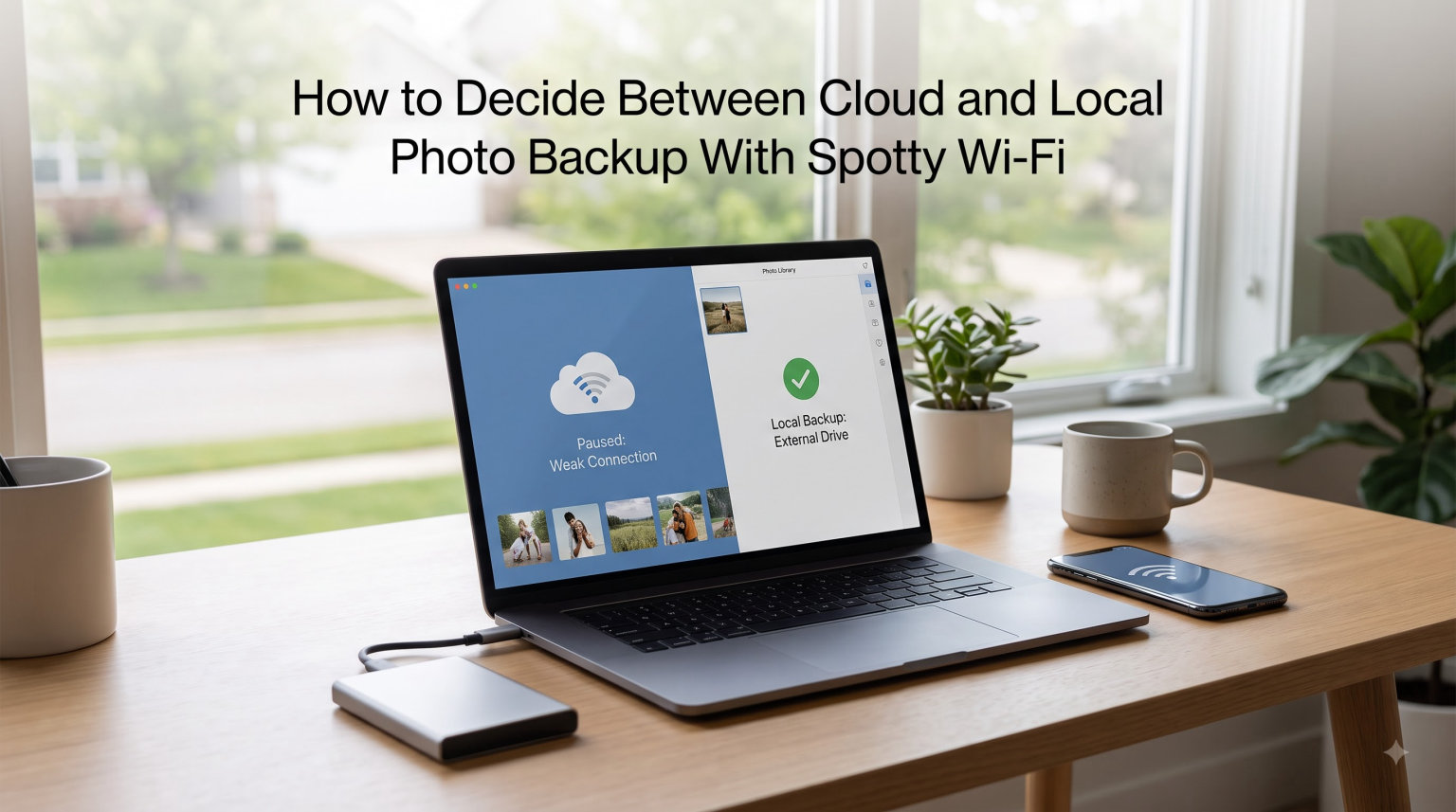
Cloud and local photo backup serve the same goal but work in completely different ways, and choosing between them becomes a real puzzle when your Wi-Fi keeps dropping. Cloud backup uploads your photos to remote servers over the internet, while local backup saves them to physical drives connected directly to your devices. The problem is that cloud backup depends entirely on a stable connection, which makes it unreliable when your internet flickers in and out.
If you live in a rural area, travel often, or deal with an internet provider that cannot hold a signal, this decision is not just about convenience. It is about whether your irreplaceable photos actually make it to a safe place. A backup that fails silently because the upload timed out is worse than no backup at all, because it gives you false confidence that your files are protected.
I have spent years helping friends and family sort through photo backup confusion, and the spotty Wi-Fi scenario comes up more often than you might think. Travelers stuck in hotel lobbies with weak connections, remote workers in countryside homes, and apartment dwellers with overloaded shared networks all face the same frustration. They want the convenience of cloud access but keep running into failed uploads and stalled transfers.
This guide breaks down exactly how to decide between cloud and local photo backup when your Wi-Fi is unreliable. We will cover what each method does well, where each one falls short, and the specific strategies that make photo backup work even when your connection keeps cutting out. By the end, you will have a clear framework for protecting your photos regardless of what your internet decides to do.
Table of Contents
What Is Cloud Photo Backup and How It Works
Cloud photo backup means your images are uploaded over the internet to servers maintained by a third-party provider like Google Photos, Apple iCloud, Amazon Photos, or dedicated services like pCloud. Once your photos reach those servers, they live in remote data centers with built-in redundancy, meaning copies exist across multiple physical locations. You can access them from any device with an internet connection, share them with family, and recover them even if your phone or computer is destroyed.
The process sounds simple in theory. Your device connects to Wi-Fi, the backup app detects new photos, and it quietly uploads them in the background. But every step in that chain depends on a stable internet connection. If your Wi-Fi drops mid-upload, the transfer fails and has to restart from the beginning of that file. With large photo files, especially RAW images or 4K video frames, a single dropped connection can waste minutes of upload time.
Advantages of Cloud Backup
Cloud backup shines when you have a reliable connection, and it offers several genuine benefits that local storage cannot match. Here is where cloud backup truly delivers value for your photo library.
First, cloud backup provides off-site protection. If a fire, flood, or theft destroys your home, your local drives burn along with everything else. Cloud copies survive because they exist hundreds of miles away in hardened data centers. This geographic separation is the single most important advantage of cloud backup, and no amount of local drives can replicate it.
Second, cloud services handle automation and versioning. Most providers automatically detect new photos, back them up without you lifting a finger, and keep multiple versions if you edit files. You do not have to remember to run a backup or worry about whether you grabbed the latest shots from your camera. Set it once, and it keeps working in the background.
Third, cloud backup gives you cross-device access. You can pull up a vacation photo on your phone, your tablet, or a friend’s computer without transferring anything. This convenience is hard to overstate for families who want to share memories across multiple devices and people.
Drawbacks of Cloud Backup With Spotty Wi-Fi
The biggest downside of cloud backup is its absolute dependence on a stable internet connection, and this is where spotty Wi-Fi turns a convenient service into a source of constant frustration. Every one of these drawbacks hits harder when your connection keeps cutting out.
Failed uploads are the number one complaint. When Wi-Fi drops during a large photo upload, the backup app either restarts the file from scratch or stalls indefinitely. Some apps resume from where they left off, but many do not, and you end up with partial uploads that look complete but are missing data. You might think your photos are safely backed up when they are not.
Ongoing subscription costs add up over time. Forum users on Reddit frequently mention frustration with paying monthly fees for cloud storage that keeps increasing as their photo libraries grow. A family with 50,000 photos and hundreds of videos can easily pay hundreds of dollars per year, and that cost never ends. If you stop paying, you risk losing access to your stored files.
Privacy is another real concern. Reddit communities focused on privacy, like r/privacy and r/degoogle, are full of users who moved away from cloud services because they did not trust third parties with their family photos. When your images live on someone else’s servers, you are relying on their security practices, their privacy policies, and their business decisions. Services have changed terms, scanned photos for metadata, or shut down entirely with little warning.
What Is Local Photo Backup and How It Works
Local photo backup means saving your images to physical storage devices you own and control, such as external hard drives, SSDs, NAS (network-attached storage) units, or SD cards. Instead of sending photos across the internet, you copy them directly from your phone or camera to a drive sitting on your desk or connected to your home network. No upload, no internet dependency, no third-party servers involved.
The transfer happens through a USB cable, a direct Wi-Fi connection between devices, or your local network router. Speeds are typically much faster than internet uploads because you are not bottlenecked by your ISP bandwidth. A USB 3.0 connection can move gigabytes of photos in minutes, while the same upload to a cloud service over spotty Wi-Fi might take hours or fail entirely.
Forum users on r/selfhosted and r/homelab frequently discuss building local backup systems using NAS devices running software like Immich or Plex. These setups give you cloud-like features, including automatic backup and remote access, but keep all your data on hardware you physically own. The tradeoff is that you are responsible for maintaining the hardware, replacing failed drives, and managing the software.
Advantages of Local Backup
Local backup is completely immune to internet problems, which makes it the natural choice when you are deciding how to handle photo backup with spotty Wi-Fi. Here are the specific advantages that matter most.
Speed is the standout benefit. Copying photos to a local drive happens at the speed of your hardware, not the speed of your ISP. A 50 GB photo session transfers to an external SSD in under ten minutes over USB. The same upload over a flaky 5 Mbps connection could take an entire day, assuming it does not fail first.
One-time cost replaces ongoing subscriptions. You buy a drive once, and it works for years with no monthly fees. A 4 TB external drive costs roughly the same as one year of mid-tier cloud storage, but it holds far more data and never sends you a bill. Forum users consistently highlight this as a primary reason for switching to local backup.
Full privacy and control. Your photos never leave your possession. No company scans them, no algorithm tags them, and no policy change can restrict your access. You decide who sees them, where they are stored, and how they are organized. For users concerned about data sovereignty, this level of control is non-negotiable.
Offline access is built in. You can browse, edit, and organize your entire photo library without any internet connection at all. Travelers, remote workers, and anyone in a low-connectivity environment can work with their photos freely instead of waiting for thumbnails to load from a remote server.
Drawbacks of Local Backup
Local backup has real limitations that you need to understand before committing to it as your only strategy. Physical vulnerability is the most serious concern. A single drive failure, a power surge, or a household accident can destroy years of memories. Unlike cloud backup, there is no remote copy waiting safely in another location unless you deliberately create one.
Manual effort is required for most local setups. Unlike cloud services that back up automatically in the background, local backup usually means you have to remember to connect your drive, run the backup software, and verify the transfer completed. Forum users admit that this manual step is exactly why people skip backups and then lose photos when disaster strikes.
No remote access. If you are traveling and want to show a photo stored on your home drive, you cannot pull it up on your phone unless you have set up remote access software. Cloud backup solves this effortlessly, but local backup requires extra configuration to achieve the same convenience.
Hardware degrades over time. Hard drives have a lifespan of roughly three to five years under normal use, and SSDs can lose data if left unpowered for extended periods. You need to monitor drive health, replace aging hardware, and migrate your library before failures happen.
How to Decide Between Cloud and Local Photo Backup With Spotty Wi-Fi
The right choice depends on five key factors: your internet reliability, your budget over time, the size of your photo library, your privacy requirements, and how often you need remote access. Let me walk you through each one so you can make a confident decision based on your actual situation rather than generic advice.
Assess Your Internet Reliability
Your Wi-Fi stability is the single most important factor in this decision, and you need to be honest about it. Test your connection speed at different times of day using a free speed test tool. Note the upload speed specifically, because backup is an upload operation, and upload speeds are almost always slower than download speeds on consumer internet plans.
If your upload speed regularly drops below 5 Mbps or your connection disconnects multiple times per day, cloud backup will frustrate you constantly. Large photo files will stall, uploads will restart repeatedly, and you will never be sure whether your latest shots actually made it to the cloud. In this scenario, local backup should be your primary method, with cloud as a secondary layer that runs when conditions allow.
For users with stable fiber or cable internet, cloud backup works smoothly and the convenience is real. The key is knowing which category you fall into before committing to a strategy that fights against your infrastructure.
Compare Long-Term Costs
Cloud storage charges you every month, and those fees scale with your library size. A modest photo collection of 200 GB might cost around $3 per month, but a serious photography library of 2 TB or more can run $10 to $25 monthly. Over five years, that adds up to $600 to $1,500, and the bill never stops as long as you want access to your files.
Local storage is a one-time purchase. A 4 TB external SSD costs roughly $300 and holds years of photos for most people. Even if you buy two drives for redundancy, your total investment is still less than two years of equivalent cloud storage. For budget-conscious users, especially families managing large libraries, local backup wins on cost by a wide margin.
The hybrid sweet spot is using free or low-tier cloud storage for your most important photos while keeping the bulk of your library on local drives. This gives you off-site protection for irreplaceable images without paying for massive cloud capacity.
Evaluate Your Photo Library Size
The size of your photo collection directly affects which backup method is practical. Small libraries under 50 GB upload to cloud services reasonably quickly, even on modest connections, and the convenience of automatic cloud backup outweighs the minor cost. If you primarily shoot phone photos for social media and personal memories, cloud backup handles your volume without issue.
Large libraries change the equation dramatically. Photographers shooting RAW files can generate 50 GB in a single shoot. A wedding photographer’s archive might exceed 10 TB. Uploading that volume over spotty Wi-Fi is not a weekend project, it is a months-long ordeal that may never complete if uploads keep failing. For large libraries, local backup is the only practical primary method, with cloud used selectively for client deliverables or final edits.
Consider Privacy and Security
Your comfort level with third-party data handling should factor heavily into this decision. Cloud providers encrypt data in transit and at rest, but they still hold the keys to your files. Privacy-focused forum communities, particularly r/privacy and r/degoogle, emphasize that once your photos are on someone else’s servers, you have surrendered control over who can access them, scan them, or use them for training machine learning models.
Local backup keeps everything in your hands. You choose the encryption, you control physical access, and you decide whether any photos ever touch the internet. For sensitive personal photos, family images, or professional client work with confidentiality requirements, local backup provides peace of mind that cloud services structurally cannot offer.
If privacy is a top priority but you still want off-site protection, consider encrypting your photos locally before uploading them to cloud storage. This way, even the cloud provider cannot read your files.
Weigh Accessibility Needs
Think about how often you actually need to access your photos from devices other than where they are stored. If you frequently share photos with family members across different locations, pull up old memories on your phone while traveling, or collaborate on photo projects with others, cloud access is genuinely valuable and hard to replicate with local storage alone.
If you primarily view and edit photos on a single computer and rarely need them elsewhere, local backup covers your needs completely. Many photographers work this way, editing on a desktop with a large monitor and backing up to attached drives at the end of each session. Remote access is nice but not essential for this workflow.
Be honest about your actual habits rather than theoretical needs. Most people overestimate how often they will access old photos remotely, and paying for cloud storage you rarely use is wasteful.
Practical Strategies for Photo Backup With Unreliable Internet
When your Wi-Fi is the weak link in your backup chain, you need specific tactics that work around connection problems instead of fighting them. These strategies come from real-world experience dealing with exactly the kind of spotty connections that make standard cloud backup fail silently. None of these require expensive equipment, and most can be implemented in an afternoon.
The 3/2/1 Backup Rule Explained
The 3/2/1 backup rule is the gold standard for data protection, and it works perfectly for the spotty Wi-Fi scenario. The rule says you should keep at least 3 copies of your photos, on 2 different types of media, with at least 1 copy stored off-site. This structure protects you against drive failure, theft, natural disasters, and internet problems all at once.
Here is how it looks in practice with unreliable internet. Your first copy lives on your phone or camera where you originally captured it. Your second copy goes to a local external drive, which happens instantly over USB regardless of your Wi-Fi situation. Your third copy syncs to cloud storage whenever your connection allows, even if that means it takes days to complete.
This approach means you always have two local copies protecting you immediately, while the cloud copy eventually catches up when your internet cooperates. You never lose photos to a failed cloud upload because your local backup already has you covered.
Schedule Backups During Off-Peak Hours
Internet connections are shared resources, and congestion during evening hours is a primary cause of slow speeds and dropped connections. Running your cloud backup at 2 AM when the rest of your household is asleep and your neighborhood is not streaming movies can dramatically improve upload reliability.
Most cloud backup apps let you schedule backup windows. Set yours to run during the early morning hours when network traffic is lowest. You can also pause backups during known high-usage times, like when family members are video conferencing or streaming content. This simple scheduling change can mean the difference between completed uploads and endless failures.
If your connection is truly terrible at all hours, consider taking your laptop to a location with better internet, like a library, coffee shop, or friend’s house, and running a bulk cloud upload from there. Once your initial library is synced, incremental uploads of new photos are much smaller and more likely to succeed even on weak connections.
Use Incremental and Compressed Backups
Incremental backup means only uploading new or changed photos rather than re-uploading your entire library every time. Most cloud services do this automatically, but it is worth verifying in your settings. If your app is trying to re-scan and re-upload everything each time it reconnects after a Wi-Fi drop, you are wasting enormous amounts of bandwidth and time.
Compression reduces file sizes before upload, which means less data to transfer over your unreliable connection. Some backup tools compress photos automatically, while others let you choose quality settings. If you are backing up phone photos, check whether your cloud app is uploading full-resolution originals or compressed versions. Compressed uploads succeed more often on weak connections because they require less sustained bandwidth.
For photographers working with RAW files, consider converting to JPEG for cloud backup while keeping RAW files on local storage only. This cuts upload sizes by 80 to 90 percent while still giving you accessible copies of every photo online.
Prioritize Local First, Cloud Second
The most reliable strategy for spotty Wi-Fi is making local backup your primary safety net and cloud your secondary layer. After every photo session, immediately copy your images to a local drive before doing anything else. This takes minutes and gives you instant protection that does not depend on your internet connection.
Once your photos are safely on local storage, let cloud backup run in the background at its own pace. If an upload fails, you have not lost anything because your local copy is already secure. This removes the anxiety of watching a progress bar crawl and eliminates the risk of incomplete backups leaving you unprotected.
Many Reddit users in r/ApplePhotos and r/samsung report that understanding the difference between sync and backup is critical here. Services like iCloud Photo Library and Google Photos are sync tools, not true backups. If you delete a photo on your phone, it disappears from the cloud too. A real backup is a separate copy that persists independently. Local backup gives you this independence, and that distinction matters enormously when you are protecting irreplaceable memories.
The Hybrid Approach: Getting the Best of Both Worlds
The smartest strategy for most people, especially those with unreliable internet, is a hybrid approach that combines local speed with cloud safety. You do not have to choose one method and commit to it exclusively. In fact, relying on only one method leaves you vulnerable regardless of which one you pick.
Here is a practical hybrid workflow that works with spotty Wi-Fi. Start with a local external drive or NAS as your primary backup, copying every photo session immediately after capture. This gives you instant, reliable protection that never depends on internet quality. Next, configure cloud backup to run automatically during off-peak hours, uploading your most important photos first. Use selective sync or folder-based backup so you control exactly what goes to the cloud and when.
For your best and most irreplaceable photos, manually upload them to cloud storage when you have access to a strong connection. Think of this as treating your favorite shots like they deserve VIP transport. The bulk of your library lives safely on local drives, while your most precious memories get the added protection of off-site cloud storage.
This approach addresses the forum pain point about subscription costs, because you only pay for enough cloud storage to cover your curated favorites rather than your entire library. It also solves the reliability problem, because your primary protection is local and immune to internet issues. And it handles privacy concerns, because you choose exactly which photos leave your possession.
FAQs
What is the 3/2/1 rule for backing up?
The 3/2/1 backup rule means keeping at least 3 copies of your photos, on 2 different types of storage media, with at least 1 copy stored off-site. For example, keep your original photos on your phone, a copy on a local external drive, and another copy uploaded to cloud storage. This strategy protects against drive failure, theft, and natural disasters simultaneously.
Is cloud backup better than local backup?
Neither is universally better. Cloud backup provides off-site protection and remote access, while local backup offers faster speeds, lower long-term costs, and complete privacy. With spotty Wi-Fi, local backup is more reliable as a primary method because it does not depend on internet stability. The best approach combines both for layered protection.
What is the best option to store photos long term?
For long-term photo storage, a hybrid approach works best. Use local drives like external SSDs or a NAS for your primary archive, since they offer fast access and one-time costs. Add cloud storage for off-site protection of your most important photos. Periodically migrate your library to new drives every 3 to 5 years to avoid hardware degradation.
What is one downside of cloud backup?
The biggest downside of cloud backup is its total dependence on a stable internet connection. With spotty Wi-Fi, uploads fail repeatedly, large files stall indefinitely, and you can never be certain your latest photos are actually backed up. Ongoing subscription costs that increase with your library size are another significant drawback.
Conclusion
Deciding how to handle cloud vs local photo backup with spotty Wi-Fi comes down to understanding what each method does well and being honest about your internet situation. Cloud backup gives you off-site protection and remote access, but it fails repeatedly when your connection is unreliable. Local backup provides speed, privacy, and one-time costs, but it requires manual effort and lacks geographic redundancy.
The strongest strategy for anyone dealing with unreliable internet is a hybrid approach. Make local backup your primary safety net by copying every photo session to an external drive immediately. Let cloud backup run in the background during off-peak hours as your secondary layer. Follow the 3/2/1 backup rule so you always have multiple copies protecting your memories.
Your photos are irreplaceable, and the worst time to think about backup strategy is after you have already lost them. Start with a local drive today, schedule your cloud uploads for when your connection is strongest, and check that your backups are actually completing rather than failing silently. Take action now, because a backup plan you implement this week is worth infinitely more than a perfect plan you never start.