
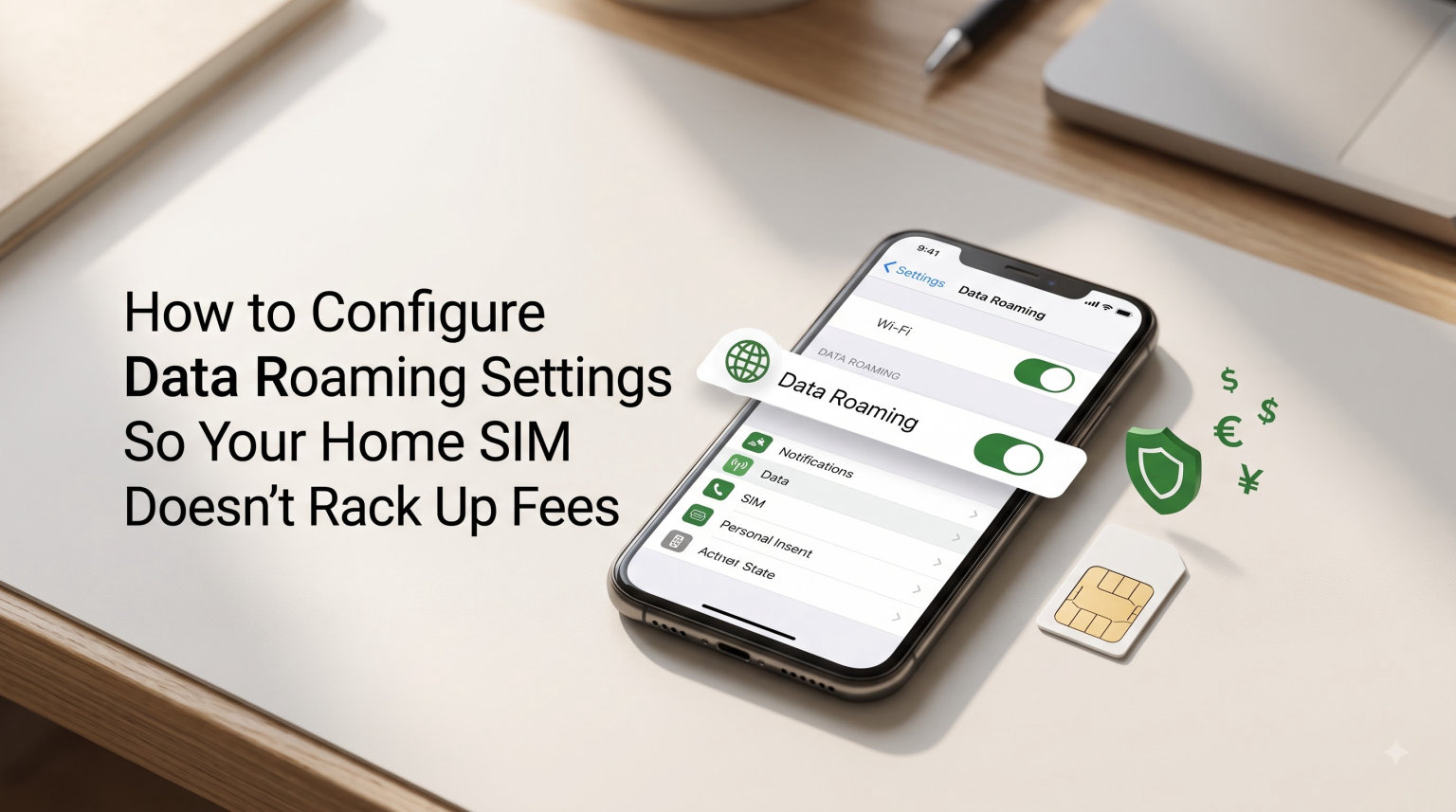
I’m writing this guide because a friend of mine came back from a five-day trip to Mexico with a $3,400 phone bill. She had no idea her iPhone was burning through roaming data the moment she landed. That story repeats itself every single year, and it’s exactly why I built this walkthrough on how to configure data roaming settings so your home SIM doesn’t rack up fees. By the end of this article, you’ll know exactly which toggles to flip, which apps to silence, and which cheaper alternatives will keep you connected without the bill shock.
Table of Contents
What Is Data Roaming and Why It Matters
Data roaming is what happens when your phone uses a foreign cellular network to get online outside your home country. Your home SIM is still active, but it borrows signal from a partner carrier in whatever country you’re visiting.
Every megabyte you use through that borrowed network is billed by your home carrier, often at rates between $2 and $15 per MB depending on the country. That’s roughly $10 to $75 just to load a typical news homepage.
The reason it matters: most travelers never actively browse the web while abroad. Their phone does it for them in the background, syncing email, refreshing apps, and pushing notifications. All of that adds up to your roaming bill.
How Roaming Charges Actually Add Up So Fast
Roaming charges accumulate because of three silent culprits: background app refresh, automatic cloud backups, and push notifications. None of these require you to touch your phone. They run quietly while your device is in your pocket.
I dug through travel forums to find real numbers, and they’re sobering. One AT&T customer reported a $5,000 international data roaming bill after a two-week European trip. A T-Mobile user posted about $25,000 in roaming charges from data billed at $2 per MB.
Another traveler mentioned a $2,100 AUD charge for using data during a flight transfer in Dubai. The common thread in every story: the user thought their phone was idle, but it wasn’t.
Even a single day of untouched phone use can cost $16 to $25 on most US carriers when roaming is enabled. That’s why preventing the charges in the first place is the only reliable strategy.
Pre-Trip Checklist Before You Leave Home
Start configuring your phone a day or two before departure, not on the plane. Rushing through settings while taxiing to the gate is how people miss toggles and come home to surprises.
Here’s what I do before every international trip. First, I call my carrier and ask whether my plan includes free roaming in my destination country. Some plans include free data in Canada, Mexico, or EU nations.
Second, I download offline Google Maps for every city I’ll visit. Third, I save important boarding passes and hotel confirmations as PDF screenshots in my camera roll.
Fourth, I set a calendar reminder to reverse every roaming-related setting when I get home. Airplane mode at home is a real problem I’ve learned to avoid the hard way.
How to Turn Off Data Roaming on iPhone (Step by Step)
Disabling data roaming on an iPhone takes about 30 seconds once you know where to look. Follow these exact steps and your home SIM will be locked out of foreign networks.
- Open the Settings app on your iPhone.
- Tap Cellular (or Mobile Data on older iOS versions).
- Tap Data Roaming and toggle it OFF.
- For dual SIM iPhones, tap each line and disable Data Roaming on both.
- Return to Cellular settings and tap Voice & Data. Set it to Low Data Mode to further reduce background consumption.
- Go back to Settings → General → Background App Refresh and toggle it OFF (or switch to Wi-Fi only).
After these steps, your home SIM can still receive calls and texts, but it will not pull any cellular data abroad. That’s the safest default for any traveler who doesn’t want a bill shock.
Bonus iPhone Settings to Lock Down
Two more settings trip people up. The first is iCloud Drive, which can push large file syncs while you’re roaming. Go to Settings → Apple ID → iCloud and disable any sync you don’t urgently need for the trip.
The second is Wi-Fi Assist, which silently switches to cellular when your Wi-Fi signal is weak. Disable it under Settings → Cellular → Wi-Fi Assist. This single toggle has saved me from hundreds of dollars in accidental roaming over the years.
How to Turn Off Data Roaming on Android (Step by Step)
Android menus vary a little by manufacturer (Samsung, Pixel, OnePlus), but the core path is nearly identical. These steps work on stock Android 13 and later, plus Samsung One UI 5 and newer.
- Open Settings on your Android phone.
- Tap Network & internet (or Connections on Samsung).
- Tap Mobile network or SIM cards.
- Toggle Data roaming to OFF for your home SIM.
- Inside the same menu, look for Data Saver and turn it on.
- Go to Settings → Apps → See all apps, then disable background data for any app that isn’t essential (email, maps, messaging).
Once Data Roaming is off, your Android phone will refuse to use foreign cellular networks for data. Calls and SMS still work normally, which is what most travelers actually want.
Samsung-Specific Roaming Tips
Samsung phones have an extra layer called Data roaming under Connections → Mobile networks. Toggle that off, then head to Connections → Data usage → Mobile data always on and disable it.
Samsung also includes a Secure Wi-Fi feature that can chew through data on insecure networks. Turn it off unless you have a specific reason to keep it on.
Managing Background Data and App Updates
Background data is the silent killer of travel budgets. Even with roaming disabled, leaving apps free to refresh in the background is a recipe for charges the moment you toggle roaming back on for any reason.
On iPhone, go to Settings → General → Background App Refresh and select Off. On Android, go to Settings → Apps → select each app → Mobile data → toggle off Background data.
Automatic updates are another culprit. On iPhone, go to Settings → App Store → Automatic Downloads and switch off both App Updates and Use Cellular Data. On Android, open Google Play Store → Settings → Network preferences → toggle off Auto-update apps over Wi-Fi only or set it to Wi-Fi only.
If you want the fastest setup, just turn on Airplane Mode the moment you land and only disable it when you’re on trusted Wi-Fi. That single toggle is the most reliable way to prevent your home SIM from racking up fees.
Alternative Solutions: eSIM, Local SIM, and Wi-Fi Calling
If you need real data abroad, the cheapest path is no longer your home carrier. Three alternatives have become standard for frequent travelers in 2026: eSIM data plans, local prepaid SIMs, and Wi-Fi calling apps.
An eSIM is a digital SIM that lives inside your phone alongside your physical home SIM. Providers like Airalo, Holafly, and Nomad sell country-specific data plans starting around $5 for 1 GB. Your phone keeps your home SIM for calls and texts while routing data through the eSIM, so you never touch roaming on your home line.
Local prepaid SIMs work in most countries and often cost a fraction of roaming rates. In Mexico, a 10 GB Telcel SIM runs around $10. In the UK, a Three UK SIM with 30 GB sells for about $15.
Wi-Fi calling apps like WhatsApp, FaceTime, and Signal let you call and message anyone over Wi-Fi. Hotel Wi-Fi is usually strong enough for video calls, and most cruise ships now offer paid Wi-Fi packages that beat roaming rates.
EU Roam-Like-at-Home Rules
If you’re a resident of an EU country, your plan likely includes free roaming across all 27 EU member states plus Iceland, Norway, and Liechtenstein. This regulation still applies in 2026, and it means your home SIM works normally across most of Europe at no extra cost.
Travelers from outside the EU don’t get this benefit. A US or Canadian home SIM will still bill roaming charges in Europe, often at $10 to $12 per day even on premium plans.
Cruise Ship Roaming Warnings You Shouldn’t Ignore
Cruise ship and boat roaming is its own category of pain. Most cruise lines charge $10 to $15 per MB when you roam onto their onboard satellite networks, which means a single social media scroll can cost $100.
I read a forum post from a passenger who turned on her phone to send one text while docked in the Caribbean and got hit with a $600 charge the next billing cycle. The ship’s network registered as “international roaming” the moment her phone connected.
The fix is simple but strict: keep your phone in Airplane Mode from the moment you board until you step off the ship at port. Use the ship’s paid Wi-Fi package instead, which usually runs $10 to $20 per day for full internet access.
Even when docked at port, your phone can grab signal from shore towers in another country. Stay in Airplane Mode unless you’ve explicitly checked which network you’re connected to.
Frequently Asked Questions
How to not get charged roaming fees?
Turn off data roaming on your phone before departure, leave it off for the entire trip, and only re-enable it when you have a roaming plan or local SIM. Airplane mode is the safest default since it blocks all cellular activity without disabling Wi-Fi.
How to avoid roaming fees with eSIM?
Buy an eSIM data plan from a provider like Airalo, Holafly, or Nomad before your trip. Set the eSIM as your data line and keep your home SIM for calls and texts only. Your home SIM never touches a foreign network, so no roaming fees apply.
How can I avoid data roaming charges?
Disable data roaming in your phone settings, turn off background app refresh and automatic updates, download offline maps and documents, and rely on Wi-Fi whenever possible. For real data needs, use an eSIM or local SIM instead of your home line.
How do I turn off data roaming for my home SIM?
On iPhone, go to Settings → Cellular → Data Roaming and toggle it off. On Android, go to Settings → Network u0026amp; internet → Mobile network → Data Roaming and toggle it off. Both paths take under 30 seconds.
Final Thoughts on Configuring Your Home SIM for Travel
Configuring data roaming settings so your home SIM doesn’t rack up fees boils down to one habit: decide before you leave whether you want your home SIM to use data abroad. If the answer is no, toggle off data roaming, kill background refresh, and stick with Wi-Fi. If the answer is yes, get an eSIM or local SIM and keep your home line for calls and texts only. Either way, you’ll come home to the same bill you left with.